Common HappyMod Problems and How to Fix Them
October 11, 2026 (2 weeks ago)
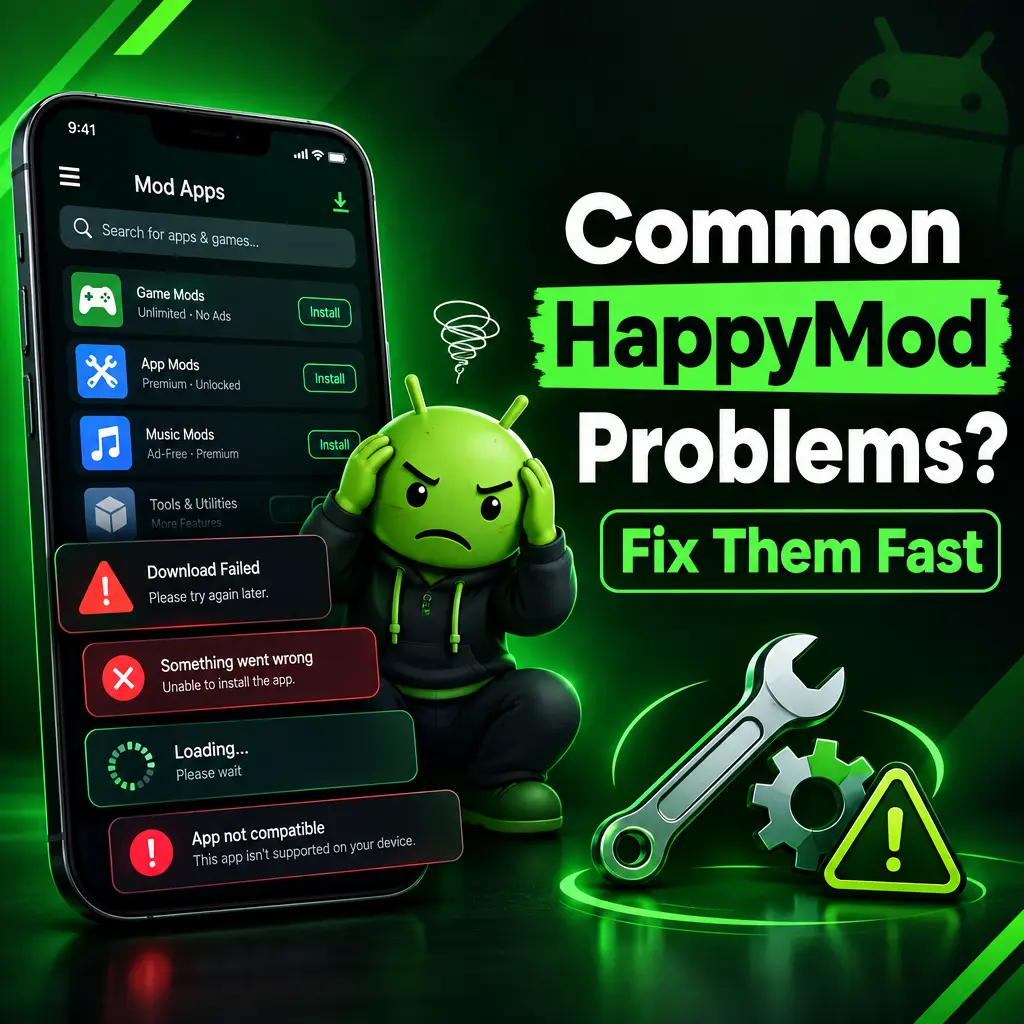
HappyMod is popular because it gives Android users access to modified apps and games with extra features, unlocked content, and custom settings. But like any third-party app marketplace, it can sometimes run into problems. You may face installation errors, downloads that do not start, apps that crash, or mods that simply do not work as expected. The good news is that most HappyMod problems are easy to fix if you know where to look. This guide covers the most common issues and simple troubleshooting steps to help you get things working again.
1. HappyMod Not Installing on Android
One of the most common problems is that the HappyMod APK does not install. This usually happens because your Android phone blocks apps from unknown sources, the APK file is corrupted, or there is not enough storage space.
- Enable unknown app installation: Go to your phone settings, open Security or Privacy settings, then allow installation from the browser or file manager you used to download HappyMod.
- Download the APK again: If the file is damaged, delete it and download a fresh copy from a trusted source.
- Check storage space: Make sure your phone has enough free space before installing. Clear old files, unused apps, or cached data if needed.
- Check Android version: Some versions of HappyMod may not support very old Android devices. Try downloading an older compatible version if available.
If the installation still fails, restart your device and try again. A simple reboot can clear temporary system issues that block APK installation.
2. HappyMod App Not Opening or Crashing
If HappyMod opens and closes immediately, freezes on the loading screen, or crashes while browsing, the issue may be caused by cache problems, outdated app files, or a conflict with your device system.
- Clear app cache: Go to Settings, then Apps, select HappyMod, and tap Clear Cache.
- Clear app data: If clearing cache does not work, clear data as well. This resets the app settings.
- Update HappyMod: Install the latest version because older builds may stop working properly.
- Restart your phone: This can fix background process errors.
- Disable battery restrictions: Some phones stop third-party apps from running correctly. Set HappyMod battery usage to unrestricted if possible.
Also check whether your internet connection is stable. HappyMod needs a working connection to load app lists, mod details, and download pages.
3. Downloads Stuck or Not Starting
Another common HappyMod problem is downloads getting stuck at 0%, stopping halfway, or not starting at all. This can happen due to network issues, server load, blocked permissions, or download manager problems.
- Switch networks: If you are using mobile data, try Wi-Fi. If Wi-Fi is slow, try another network.
- Pause and resume: Stop the download and start it again. This often fixes small connection errors.
- Check app permissions: Make sure HappyMod has storage permission so it can save APK files.
- Free up storage: Large modified games may need several gigabytes of space.
- Try later: Sometimes the download server is busy. Waiting a few minutes can help.
If the same file fails again and again, the upload may be broken. Try another version of the mod if HappyMod lists multiple options.
4. “App Not Installed” Error After Downloading a Mod
This error usually appears when Android cannot install the modified APK. It may be caused by an existing version of the app, a signature conflict, or an incompatible APK.
- Uninstall the original app: Many modded apps cannot be installed over the official version because they use a different signature.
- Back up your data first: If the app has important progress or files, save them before uninstalling.
- Check CPU architecture: Some APKs only work on certain devices. If available, choose the correct version for your phone.
- Install APK and OBB correctly: Large games may need extra OBB files placed in the correct folder.
For games with OBB files, the correct path is often Android/obb/package-name. If the OBB file is missing or placed in the wrong folder, the game may not open or may ask you to download extra data.
5. Mod Features Not Working
Sometimes a mod installs fine, but the promised features do not work. For example, unlimited coins may not appear, unlocked levels may still be locked, or ads may still show. This can be frustrating, but there are a few reasons why it happens.
- Read the mod notes: Some mods require special steps, such as turning on a feature from an in-game menu.
- Use offline mode: Some mod features work only when the game is offline because server checks can block changes.
- Try a different mod version: HappyMod often has several uploads from different users. One may work better than another.
- Avoid logging in with official accounts: Some online games detect modified versions when you connect to an account.
It is also important to understand that not every app can be fully modified. Games that store coins, levels, or purchases on online servers are much harder to change. In those cases, the mod may only affect visual elements or offline features.
6. HappyMod Shows Parse Error
A parse error means Android cannot read or process the APK file. This often happens when the file is incomplete, the APK is not compatible with your Android version, or the download was interrupted.
- Delete the APK and download it again.
- Make sure the APK download finished completely.
- Check if your Android version is supported.
- Try another version of the same app or game.
- Update your Android system if an update is available.
If you keep getting parse errors on many APKs, the problem may be with your file manager or browser. Try using a different browser to download the file.
7. App Crashes After Installing a Mod
A modded app may crash because it is not compatible with your device, lacks required files, or conflicts with data from a previous installation. Some mods are tested on specific phones and may not work perfectly on all Android models.
- Clear the app cache and data: This removes old settings that may cause crashes.
- Reinstall the app: Delete the mod and install it again carefully.
- Install required files: If the game needs OBB or data files, make sure they are in the right folder.
- Try another mod build: A different version may be more stable.
- Close background apps: Heavy games need enough RAM to run smoothly.
If the app crashes only after login, it may be detecting the modified version. In that case, offline use or another mod version may be the only practical option.
8. HappyMod Running Slowly
If HappyMod feels slow, takes too long to load pages, or freezes while scrolling, the issue may be related to your connection, phone performance, or app cache.
- Clear HappyMod cache regularly.
- Use a stable Wi-Fi connection when browsing and downloading.
- Close apps running in the background.
- Restart your phone once in a while.
- Update HappyMod to the latest version.
Low-end devices may struggle with large app lists and heavy downloads. Keeping your phone clean and updated can improve performance.
9. Safety and Permission Issues
Because HappyMod offers modified apps, you should be careful with permissions and downloads. Some apps may ask for access they do not really need. For example, a simple game should not need access to your contacts or messages.
- Check app permissions before installing.
- Avoid apps that request unnecessary sensitive access.
- Use antivirus or Play Protect scanning when possible.
- Download only popular mods with good user feedback.
- Do not use modded apps for banking, payments, or private accounts.
Modified apps can be useful and fun, but they also carry more risk than official apps from the Google Play Store. Always protect your personal data and avoid signing into important accounts inside modified apps.
Final Tips for Fixing HappyMod Problems
Most HappyMod issues come down to compatibility, storage, permissions, or broken downloads. Start with the basics: restart your phone, check your internet, clear cache, and make sure you have enough storage. If one mod does not work, try another version and read user comments before installing. A little troubleshooting can save a lot of time and help you enjoy HappyMod more smoothly.
Recommended For You